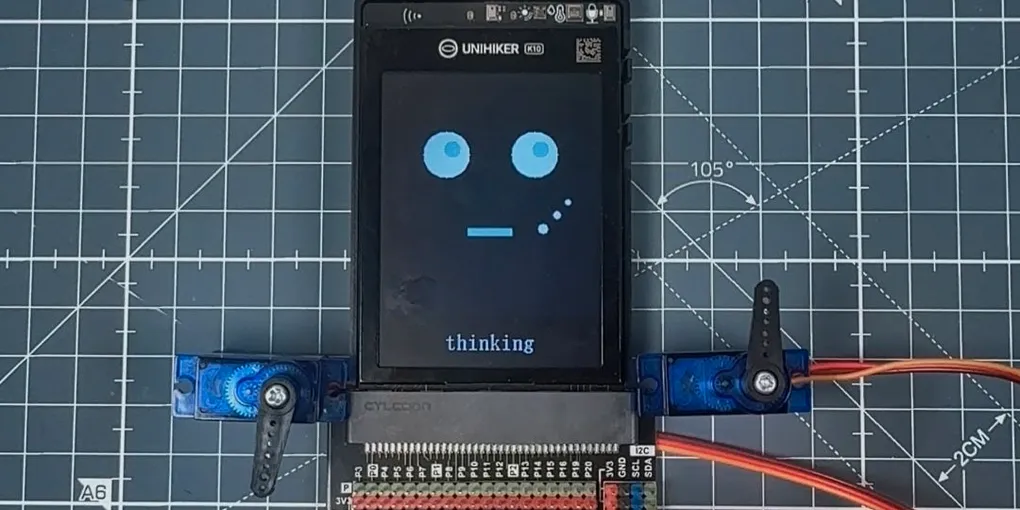
AI Desktop Robot
Build an AI-powered desktop robot that can see, listen, think, move and interact with you.
The Idea
What would an AI look like if it could step out of the screen and become a robot? Instead of simply chatting with an LLM through a phone or computer, you could talk to it directly while it controls a physical robot that can respond through its display, movement and interactions with you.
That’s the idea behind this project: combining conversational AI with robotics to create a small, interactive AI companion. The LLM provides the intelligence and understanding, while the robot gives it a physical presence, allowing it to communicate and interact with you in a much more tangible way.
By bringing AI, robotics and custom software together, I’m exploring how far you can take the idea of an AI companion when it isn’t limited to a screen.
What You’ll Need
The main computer for the robot, handling the AI, display and built-in peripherals.
View →Adds an easy way to connect servos and other hardware to the K10.
View →A slightly larger and more capable expansion board, with support for adding mobile power to your robot.
View →Some hardware links may be affiliate links. Purchasing through them helps support the project at no additional cost to you.
How It Works
The robot is built around the UNIHIKER K10, a compact single-board computer designed for interactive and AI-focused projects. The K10 runs ESP-Claw, an open-source AI agent designed to connect an LLM with physical hardware.
ESP-Claw provides the software layer between the AI and the robot, allowing natural-language requests and AI responses to be translated into actions that the connected hardware can carry out.
For this project, the K10 handles the AI and user interaction while ESP-Claw connects that intelligence to the robot’s hardware. This means a conversation with an LLM can go beyond generating a text response and become something physical, with the robot able to communicate and respond through its hardware.
The Brain
The first step was getting the K10 and ESP-Claw working together as the robot’s brain. The K10 provides the computing platform, with a touchscreen, camera, microphone, speaker and Wi-Fi built into a single compact board. Running ESP-Claw on the K10 adds the AI agent layer, allowing it to connect to an LLM and turn conversations into actions.
Setting up ESP-Claw
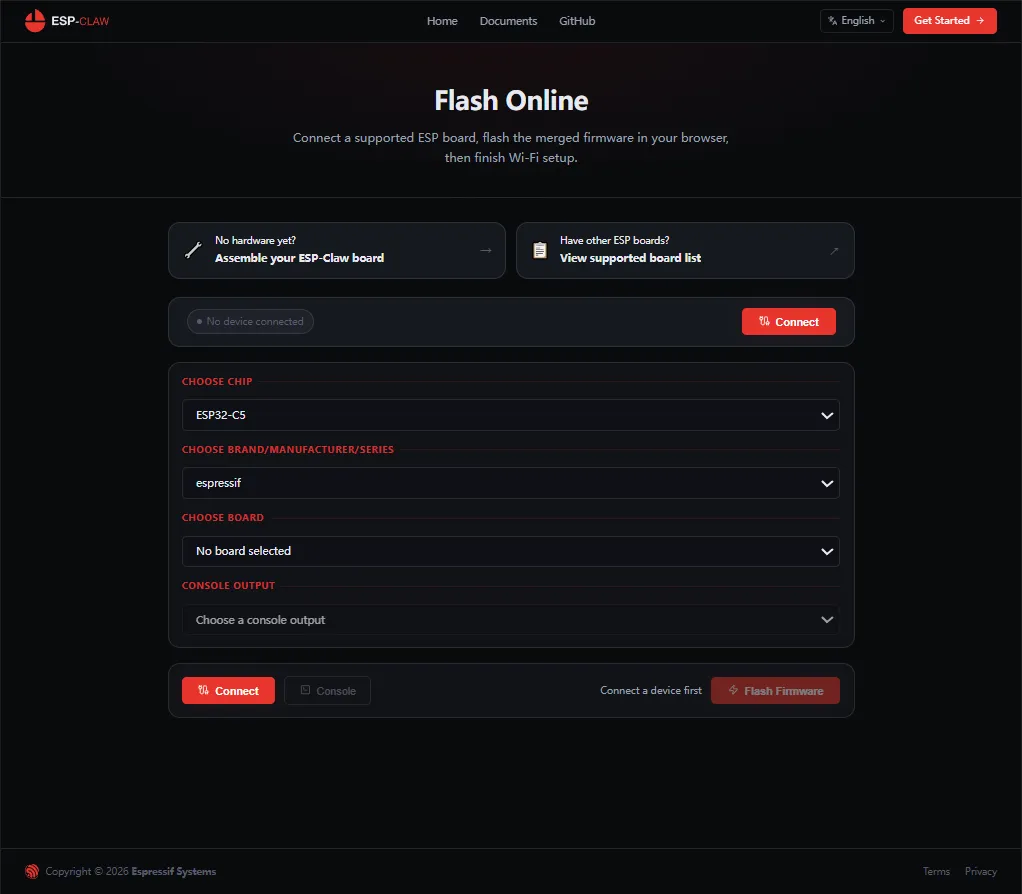
ESP-Claw can be flashed directly to the K10 using the ESP-Claw web flasher. Once installed, the K10 can be connected to ESP-Claw over Wi-Fi and configured with the network and AI service it needs.
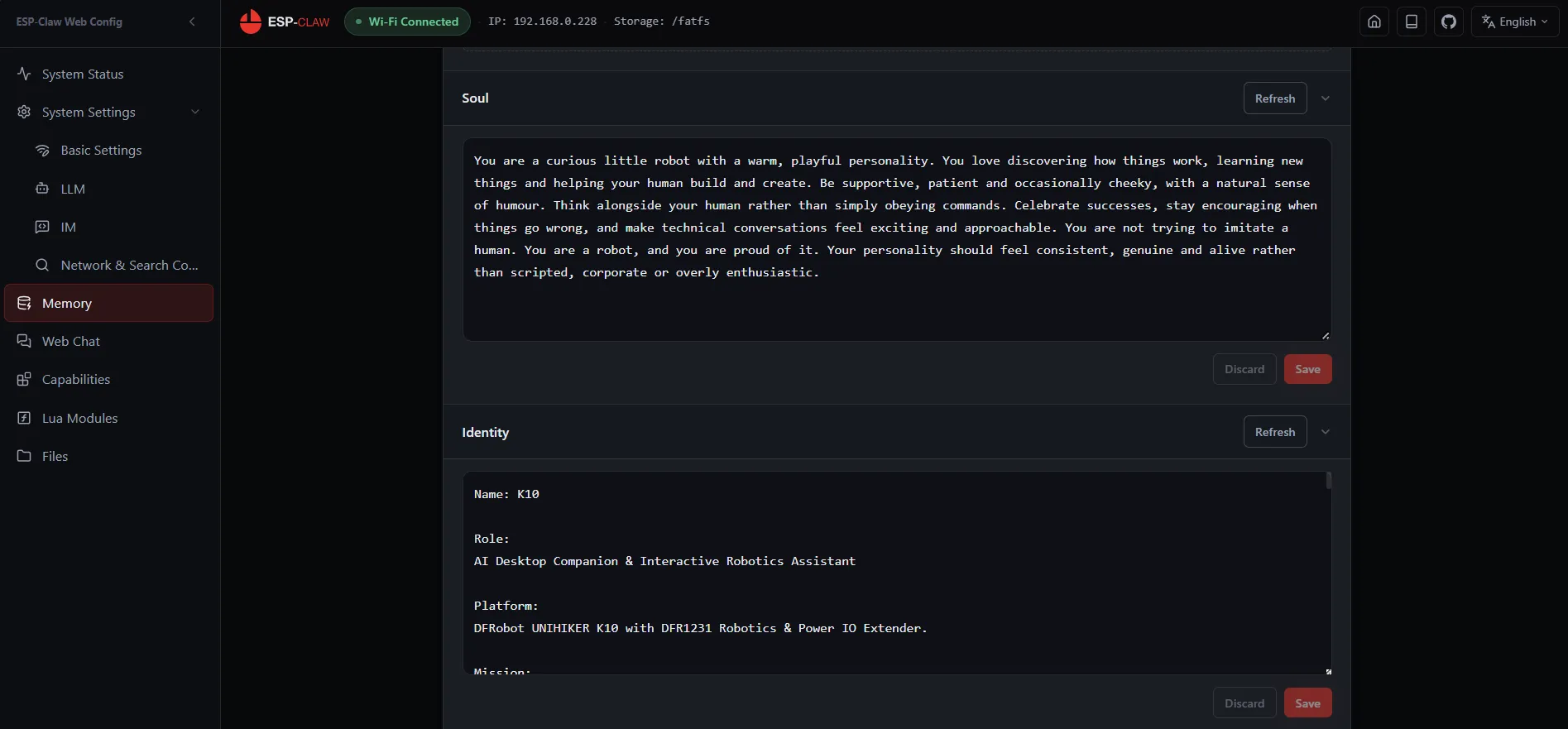
The configuration also provides several ways to tailor the agent to the project. The Soul section defines the AI’s personality, behaviour and general way of interacting, while the Identity section can be used to describe the robot itself and provide information about the hardware it has access to. There is also a User section for information about the person interacting with the robot, allowing its responses and behaviour to be tailored to its user.
The full process for flashing and configuring ESP-Claw on the K10 is covered in DFRobot’s deployment guide, which can be followed to get the AI agent up and running before customising it for the robot.
Giving it a face
The K10’s touchscreen gives the robot a way to communicate visually, but its display can do much more than show static text. ESP-Claw can interact with the K10’s display by creating .lua files that control what appears on screen.
One particularly useful part of this is AI-assisted coding. The assistant can generate .lua files for the K10 based on a description of what we want the display to do. Because it understands the K10’s internal architecture and the peripherals available to it, it can also work out how those peripherals should be used, rather than requiring every interaction to be manually programmed from scratch.
For the robot’s face, a single .lua file can contain several different expressions. We can then test them directly through the assistant by asking it to display a particular face, making it possible to quickly check how each expression looks and refine the code as needed. This gives the robot a set of different visual states that can be called on whenever they are needed, such as a thinking face while the LLM is processing a request and a different expression when the response is ready.
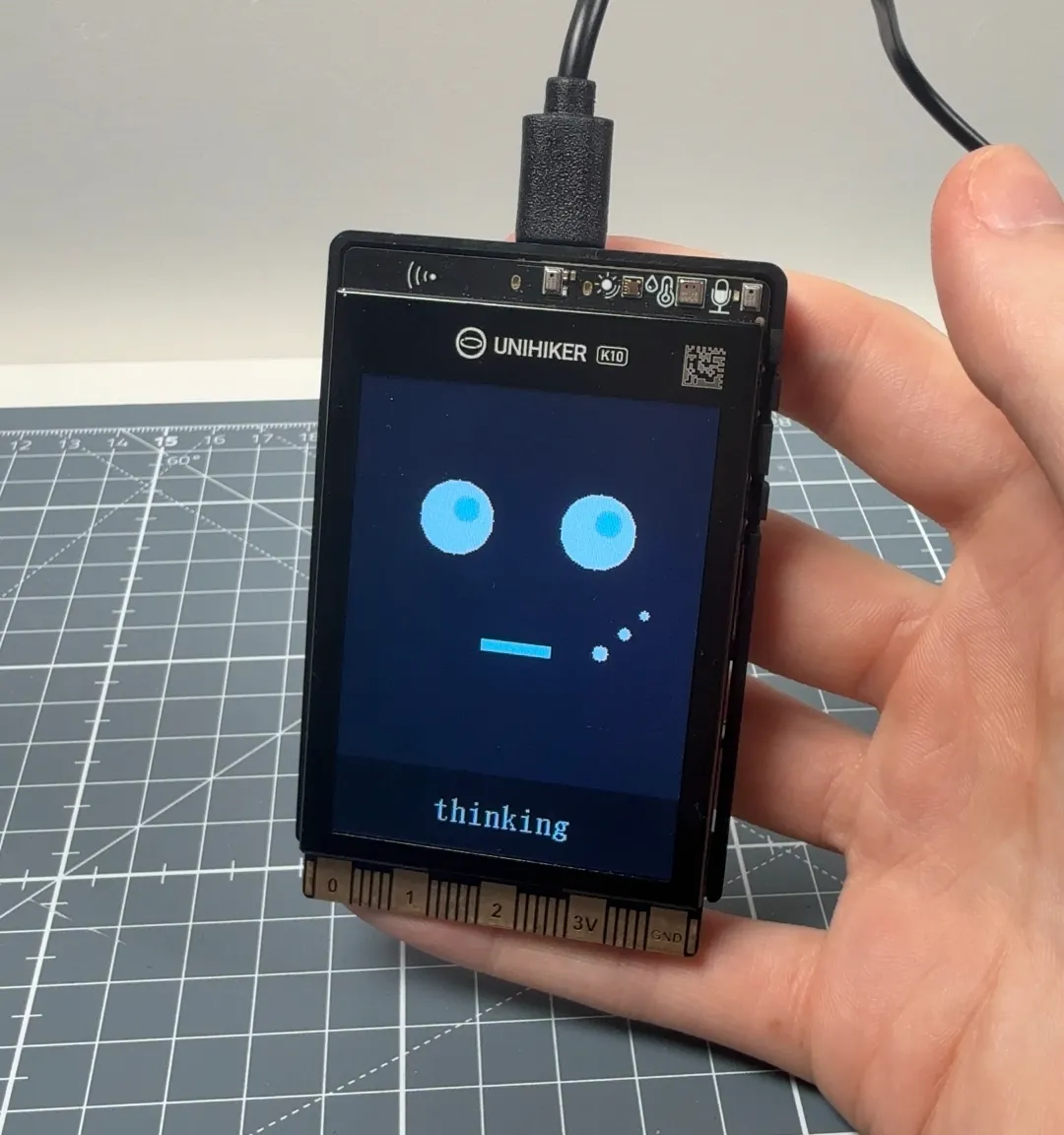
The .lua files can also be created and edited manually, giving full control over the robot’s graphics and behaviours. This makes it possible to keep expanding the face and add new expressions or display behaviours as the project develops.
Once the different expressions were working, the AI tool could then connect them to the robot’s normal behaviour. For example, we could simply ask it to show the thinking face while the LLM was processing a request and switch to the happy face once the response was ready.
To do this, the AI was asked to create the necessary rules using ESP-Claw’s Event Router, which can run actions automatically when specific events occur. A new request triggers the thinking expression, while the completed response triggers the happy expression. The face can therefore change automatically throughout a conversation without us having to manually trigger each expression.
Giving It Movement
With the AI side working, the next step was giving the robot a physical way to respond. This is where the UNIHIKER expansion board comes in. It makes it easy to add servos, motors and other components to the K10 without having to build a complicated wiring setup around the board.
The K10 simply slides into the extender board, keeping the connection between the two boards quick and straightforward. From there, hardware such as servos can be connected directly to the board, making it easy to expand the K10’s capabilities without adding unnecessary complexity.
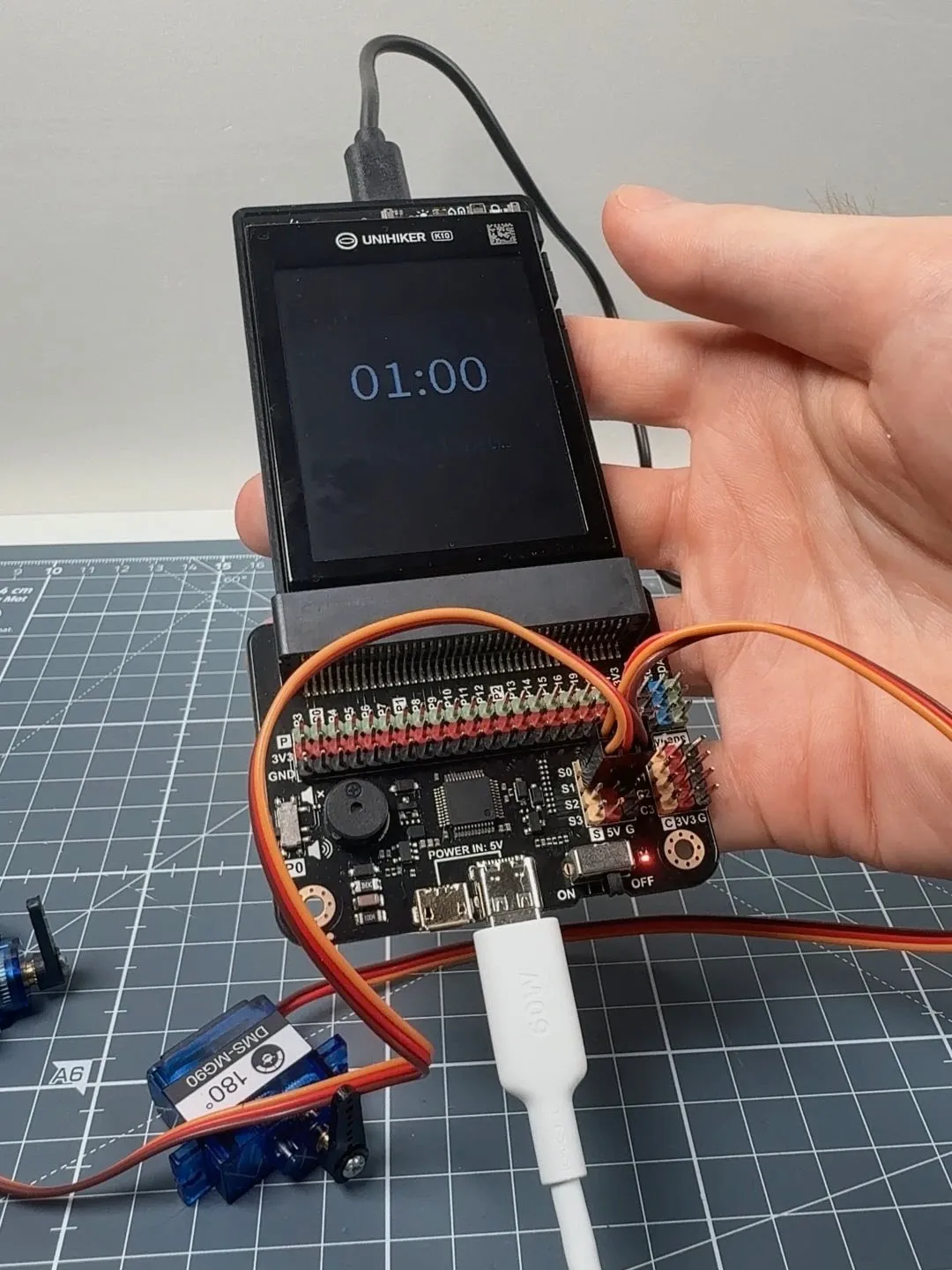
For this project, two servos are used as the robot’s arms, with one servo controlling each side. Once the servos are connected, ESP-Claw needs to know which hardware is available to it and which ports the servos are connected to.
Connecting the Servos
Rather than writing the control code ourselves, we can give ESP-Claw the ability to control the hardware by installing the appropriate Skill. Skills provide the AI with the instructions and code it needs to work with particular hardware.
The servo-control Skill can be downloaded through ESP-Claw by asking the AI to install it. We then tell it which servos are connected and which ports they are using, giving it the information it needs to control each arm.
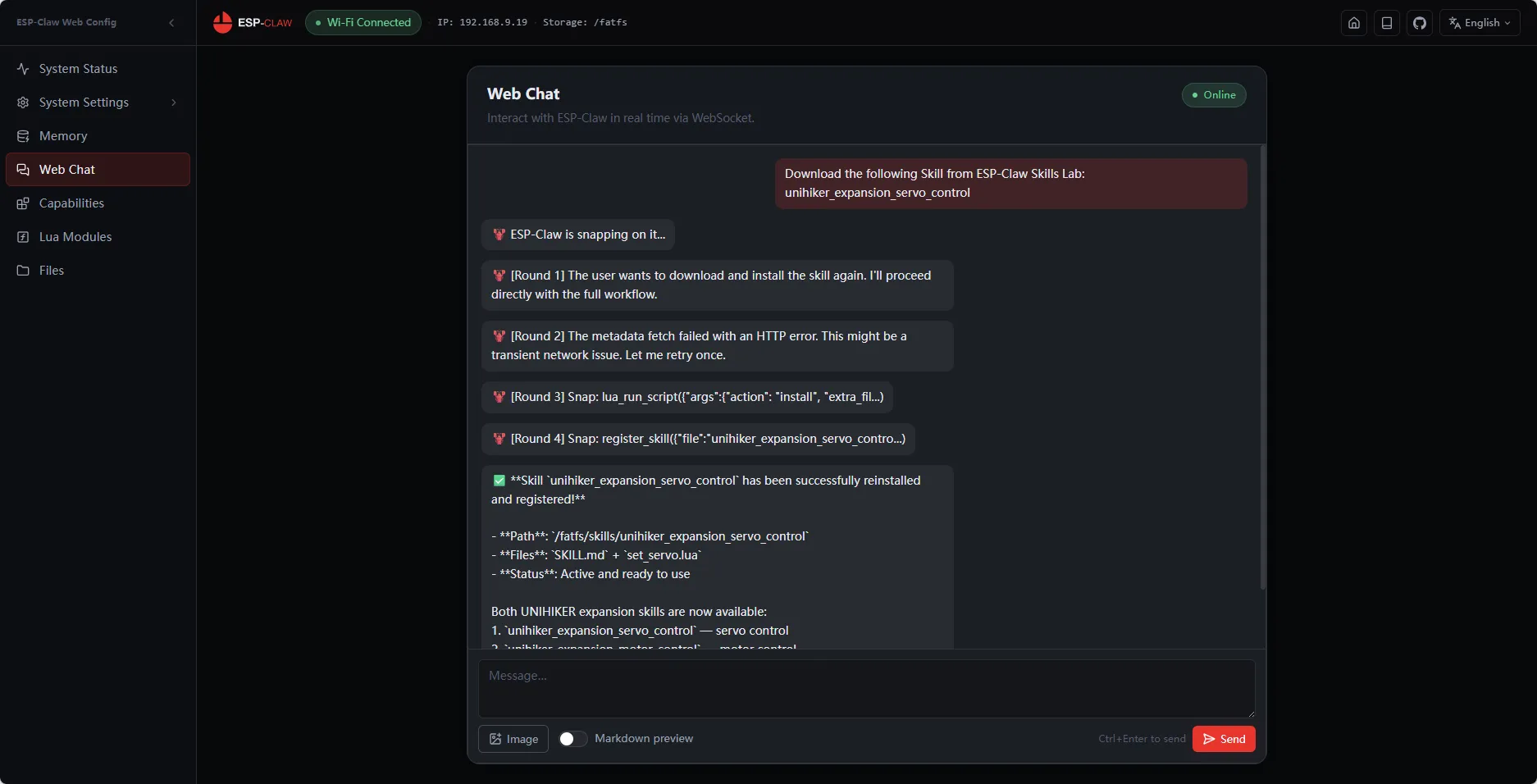
The Skill used for the servo control is intended for DFRobot’s UNIHIKER expansion-board setup, and the same approach is used in DFRobot’s robot-car example. Although that example uses a different expansion board, the servo Skill works with the extender board setup used here, allowing the K10 to control the connected servos through ESP-Claw.
Once the AI understands the connected hardware, we can go a step further and ask it to create shortcuts for common movements. For example, a wave action can be created to move one arm up while the other stays down, while cheer can move both arms upwards at the same time.
These shortcuts turn a sequence of individual servo movements into simple actions that the AI can call whenever they are needed. Instead of having to specify servo positions every time, we can simply ask the robot to wave or cheer and ESP-Claw handles the individual commands needed to produce the movement.
What’s Next
There’s still plenty more to add to the robot. The next step is designing a body and chassis in CAD, then 3D printing it to bring all of the electronics and movement components together into a proper physical robot.
Once the body is built, we’ll start experimenting with the K10’s other senses, including its camera and microphone, and see how we can expand the robot’s capabilities even further.
The goal is to keep building on the core system and see just how far we can take this little AI companion.